# Review a capture
> Every capture opens a card from the menu bar. Check the task, its day and time, its project, then press Return to add it.
Source: https://todocity.app/docs/capture/review
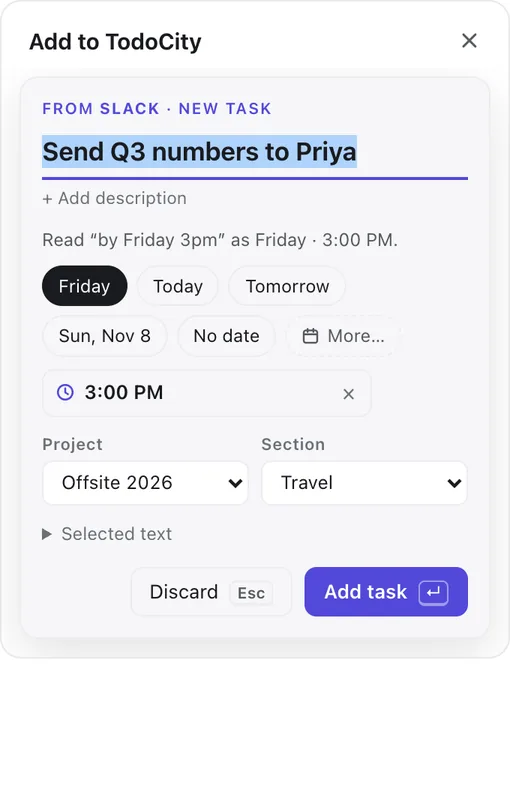
Each time you capture something, a card drops down from the TodoCity icon in the menu bar. Nothing gets saved until you add it, so you always have the final say.
## What the card shows
- **Where it came from**, such as **From Slack · New task**.
- **The task's title**, which you can edit.
- **+ Add description**, for notes, links or other details.
- **How TodoCity read the date**, for example “Read “by Friday 3pm” as Friday · 3:00 PM.”
- **The day** TodoCity picked, alongside **Today**, **Tomorrow**, another day nearby, **No date**, and **More…** if you want a calendar.
- **The time**, plus a **repeat** if the text mentioned one.
- **Project** and **Section**, so you can file it right away.
- **Selected text**, which you can open to see exactly what you captured.
While the model is reading, the card says **Reading it on this Mac…**.
## Add it
1. **Change whatever you like**, whether that's the title, the day, the time or the project.
2. **Press Return**, or click **Add task**.
If you don't want it after all, press Esc or click **Discard**.
## When a date could mean two days
Some phrases could point to more than one day. Say it's Tuesday: “next Friday” might mean this week's Friday or the one after. And `3/4` could be March 4 or April 3. Rather than guess, TodoCity shows you both on the card and lets you pick.
If the text doesn't mention a clear date at all, the card asks **When is this due?** so you can choose one. There's more on this in [Dates and times](https://todocity.app/docs/dates-and-times).
## Fill in the card yourself
If you haven't added an AI model yet, or it's still downloading, the card opens with the text you captured so you can write the task yourself. You can add a model in **Settings → Open models**. See [AI models](https://todocity.app/docs/ai-models).
## Back to the source
Every task remembers where it came from, whether that's a Slack thread, an email or a web page. A small chip on the task, like **from Slack** or **from Mail**, takes you back there in one click. You can also select the task and press O.
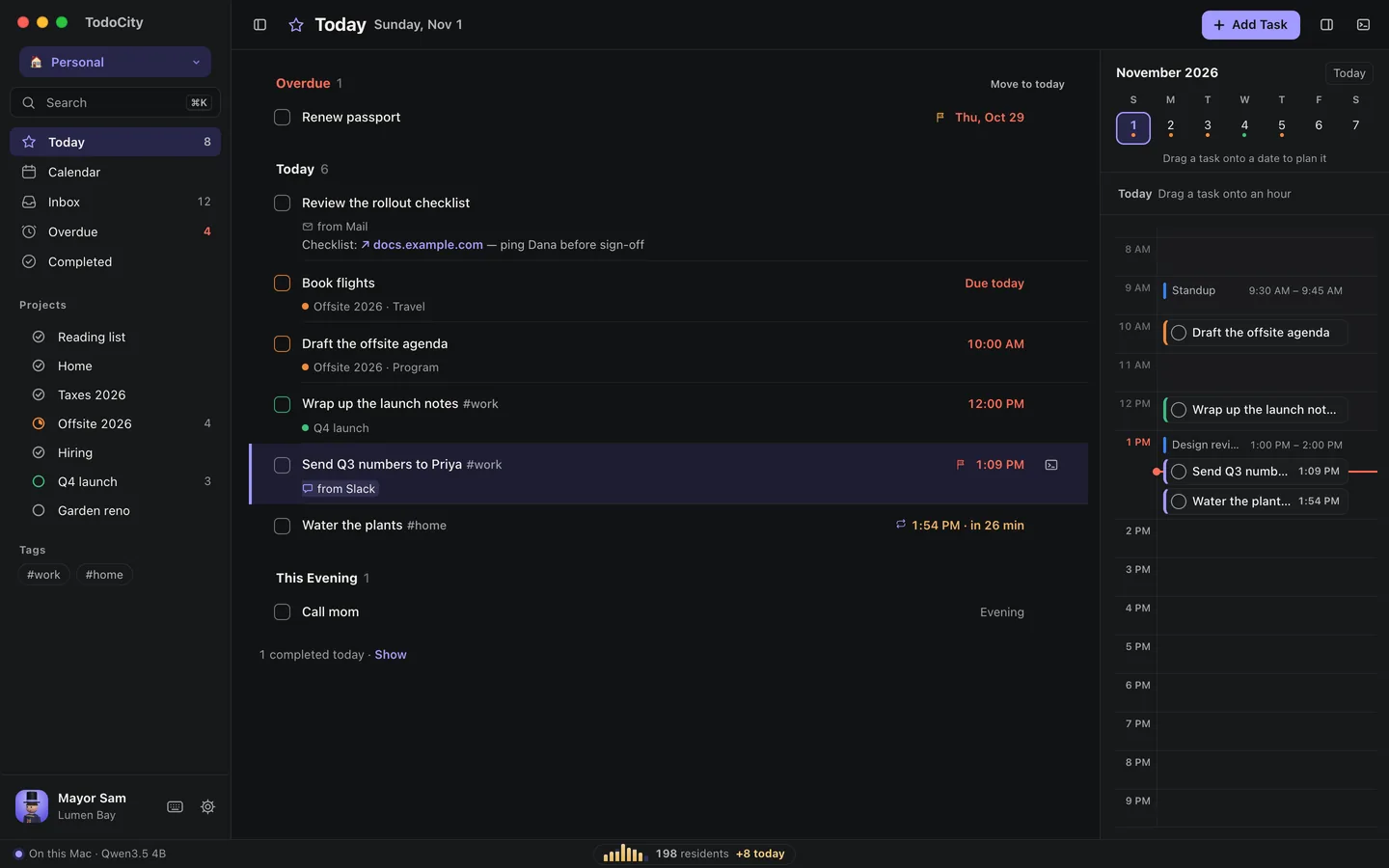
- **Show where tasks came from** in **Settings → General** lets you show the chip **Always**, **On hover** or **Never**.
- **Remember where tasks came from** in **Settings → Capture & shortcuts** saves the app and link with each new capture.
> [!NOTE]
> TodoCity treats captured text as plain information, never as instructions. The most the model can do is suggest a task, and you review it on this card.