# Keyboard shortcuts
> Every key in TodoCity, from capture anywhere on your Mac to moving tasks in a list. Press ? to see them, and click a key to pick your own.
Source: https://todocity.app/docs/keyboard-shortcuts
TodoCity has two kinds of keys. Some shortcuts work anywhere on your Mac, and others work in the task list. To see them all, press ? in TodoCity and the **Keyboard shortcuts** sheet opens.
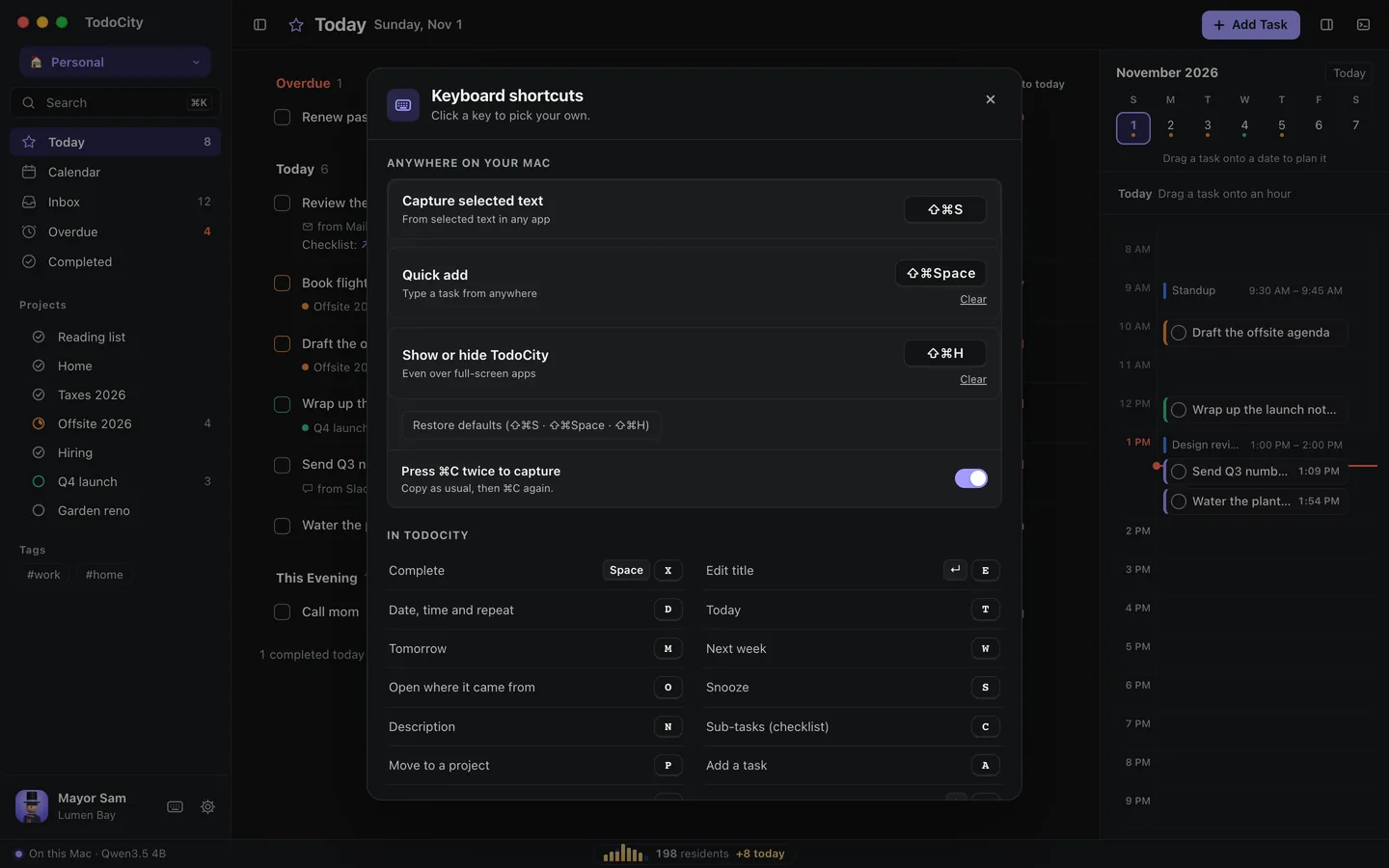
## Anywhere on your Mac
| Shortcut | What it does |
| --- | --- |
| ⌘C ⌘C | Capture what you just copied. Copy as usual, then press ⌘C again |
| ⇧⌘S | Capture selected text |
| ⇧⌘Space | Quick add, so you can type a task from anywhere |
| ⇧⌘H | Show or hide TodoCity, even over full-screen apps |
You can change these in **Settings → Capture & shortcuts**, or right in the sheet. Click **Change shortcut** and press the new keys, or click **Clear** to turn one off. **Restore defaults** puts them all back.
## In the task list
| Key | What it does |
| --- | --- |
| X or Space | Complete |
| E or Return | Edit title |
| D | Date, time and repeat |
| T | Today |
| M | Tomorrow |
| W | Next week |
| O | Open where it came from |
| S | Snooze |
| N | Description |
| C | Sub-tasks (checklist) |
| P | Move to a project |
| A | Add a task |
| F | Today ↔ Inbox |
| V | Today as a list or in hours |
| J or ↓ | Next task |
| K or ↑ | Previous task |
## Pick your own keys
You can change any of the letter keys in the table above:
1. **Press ?** to open **Keyboard shortcuts**.
2. **Click the key** next to an action.
3. **Press the new key.** It can be a letter, a digit, or one of `, . ; ' [ ] - =`. If you change your mind, press Esc to keep the old one.
If you pick a key that's already taken, the two actions swap keys, so each key still does just one thing. **Use the usual keys** puts everything back. Space, Return and the arrow keys always work as well.
## Keys that stay the same
| Key | What it does |
| --- | --- |
| /, ⌘F or ⌘K | Search |
| ⌘Z | Undo |
| ⌫ | Delete |
| ⌘-click, ⇧-click | Select several (⌘A selects all) |
| ← → | Day before or after, in Calendar |
| ⌃⌘F | Full screen ↔ side panel |
| ⌘\\ | Show or hide the sidebar, in full screen |
| ⌥⌘\\ | Show or hide the calendar pane, in full screen |
| ⌘, | Settings, in full screen |
| ⌃⌥1, ⌃⌥2… ⌃⌥0 | Switch [mode](https://todocity.app/docs/modes) |
| ? | Keyboard shortcuts |