# Tasks
> Everything a task can hold. Notes, sub-tasks, a day and time, a deadline, a length, priority P1 to P3, tags and a repeat, all saved as you type.
Source: https://todocity.app/docs/tasks
Click a task and it opens right where it is, showing everything it can hold. Whatever you change is saved as you go, so there's no Save button to look for.
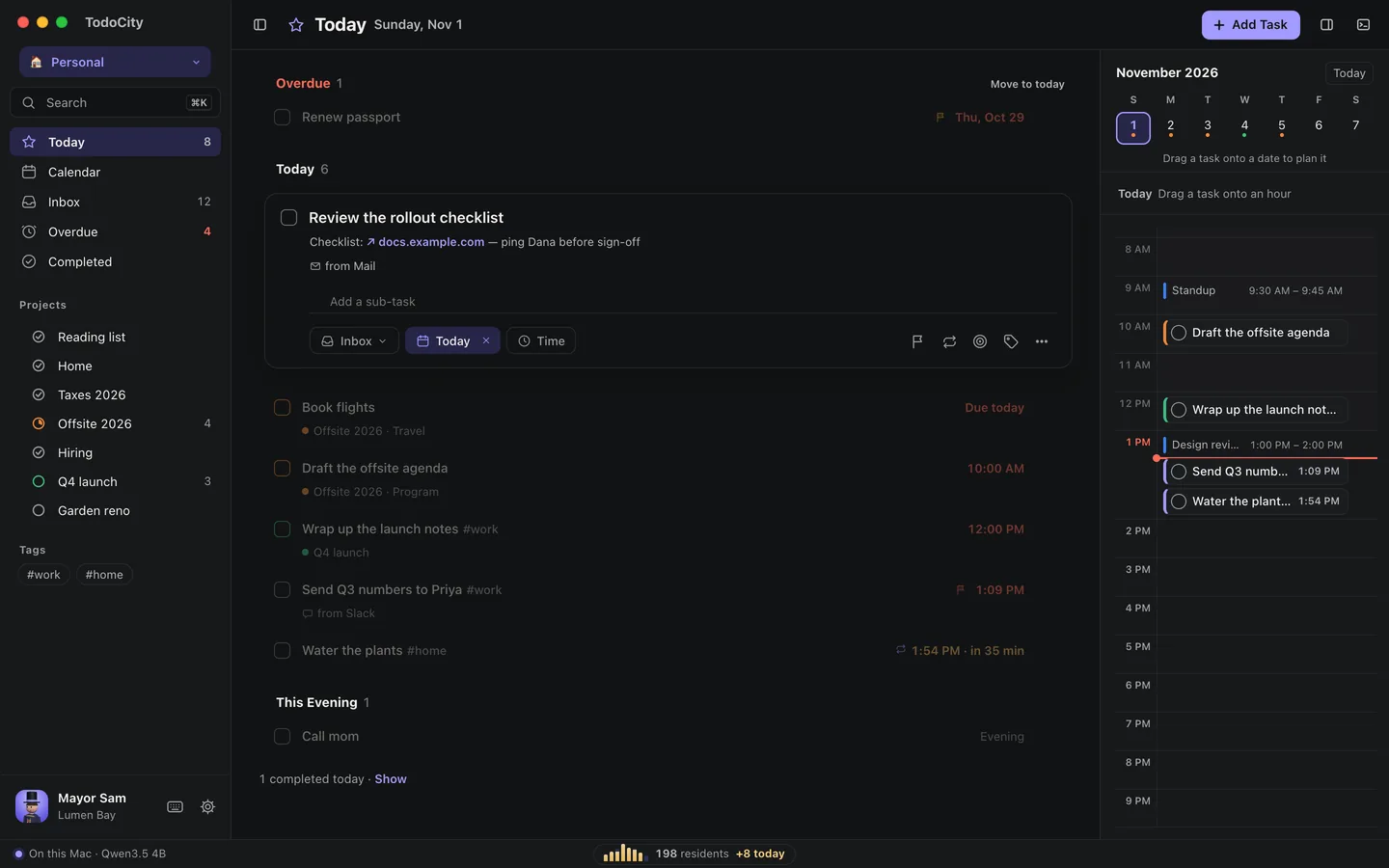
## What's in a task
| Part | What it's for | How to set it |
| --- | --- | --- |
| Title | What to do | Click the title, or press E |
| Notes | Links, details, anything you'll want later. Links open in one click | **Notes**, or press N |
| Sub-tasks | Steps to tick off one at a time | **Add a sub-task**, or press C |
| Project and section | Where it belongs | The project chip, or press P |
| Day and time | When you plan to do it | The date chip and **Time**, or press D |
| Length | How long it takes | **Length** |
| Deadline | The day it has to be done by | The deadline icon |
| Priority | P1, P2 or P3 | The flag icon |
| Repeat | When it comes back | The repeat icon. See [Repeats](https://todocity.app/docs/repeats) |
| Tags | Words for grouping and finding tasks | The tag icon, or `#tags` in the title |
## Day and time
The date chip gives you **Today**, **Tomorrow**, **Someday** and **No date**, plus a calendar. For the full date and time editor, press D. It adds **This evening** and **Next week**, along with a time, a deadline and a repeat.
You can also just type the date, like “fri 3pm”, “tomorrow evening” or “every monday”. See [Dates and times](https://todocity.app/docs/dates-and-times).
Times can be any minute you like, such as 9:07.
## Sub-tasks
Sub-tasks are a checklist inside the task. In full screen, they show right under it, so you can tick them off without opening anything.
If you paste or type a few lines as a list (`- milk`, `- eggs`), each line becomes a sub-task. Capturing a bulleted list works the same way.
To show or hide notes and sub-tasks under every task, use **Settings → Appearance → Show notes under tasks**.
## Deadline
A **deadline** is the day a task has to be done by, which isn't always the day you plan to do it. If a task is planned for next week but due on Friday, it shows up in Today on Friday.
The task gets a chip like **Due Fri**, which changes to **Due today** when the day arrives. To clear a deadline, open it and click **Remove deadline**. On a repeating task, a deadline ends the series on that day.
## Length
Use the **Length** chip to pick a quick length, or type any number of minutes, like `7`, `45` or `1h30`. A task can last anywhere from 1 minute to a whole day, and [Calendar](https://todocity.app/docs/calendar) draws each one at its real start time and length.
## Priority
| Priority | Name |
| --- | --- |
| P1 | Urgent |
| P2 | High |
| P3 | Medium |
Click the flag, or type `p1`, `p2` or `p3` when you add a new task.
## Tags
Type a tag and press Return, or write `#tags` in the title. Your tags are listed in the sidebar, and clicking one shows only its tasks. You can also search for something like `#home`. See [Search](https://todocity.app/docs/search).
## More
The **⋯** button on an open task has everything else:
- **Open in Slack**, **Open in Mail** and so on take a captured task back to where it came from.
- **Send to agent…** hands the task over to an AI agent. See [The agent panel](https://todocity.app/docs/agents/panel).
- **Snooze** offers 15 min, 1 hour, Tonight, Tomorrow or Next week.
- **Move to Someday**
- **Duplicate**
- **Delete**
⌘Z undoes your last change, even a delete.
## Saving
Your edits are saved half a second after you stop typing, and again when you click away or close the task. Click **Done** to close it.
## Select several
⌘-click or ⇧-click to select several tasks at once (or ⌘A to select them all), then complete, move or delete them together.