# Today
> Today shows what's due and planned for today, what's left for this evening, and anything late, with the day's hours beside it.
Source: https://todocity.app/docs/today
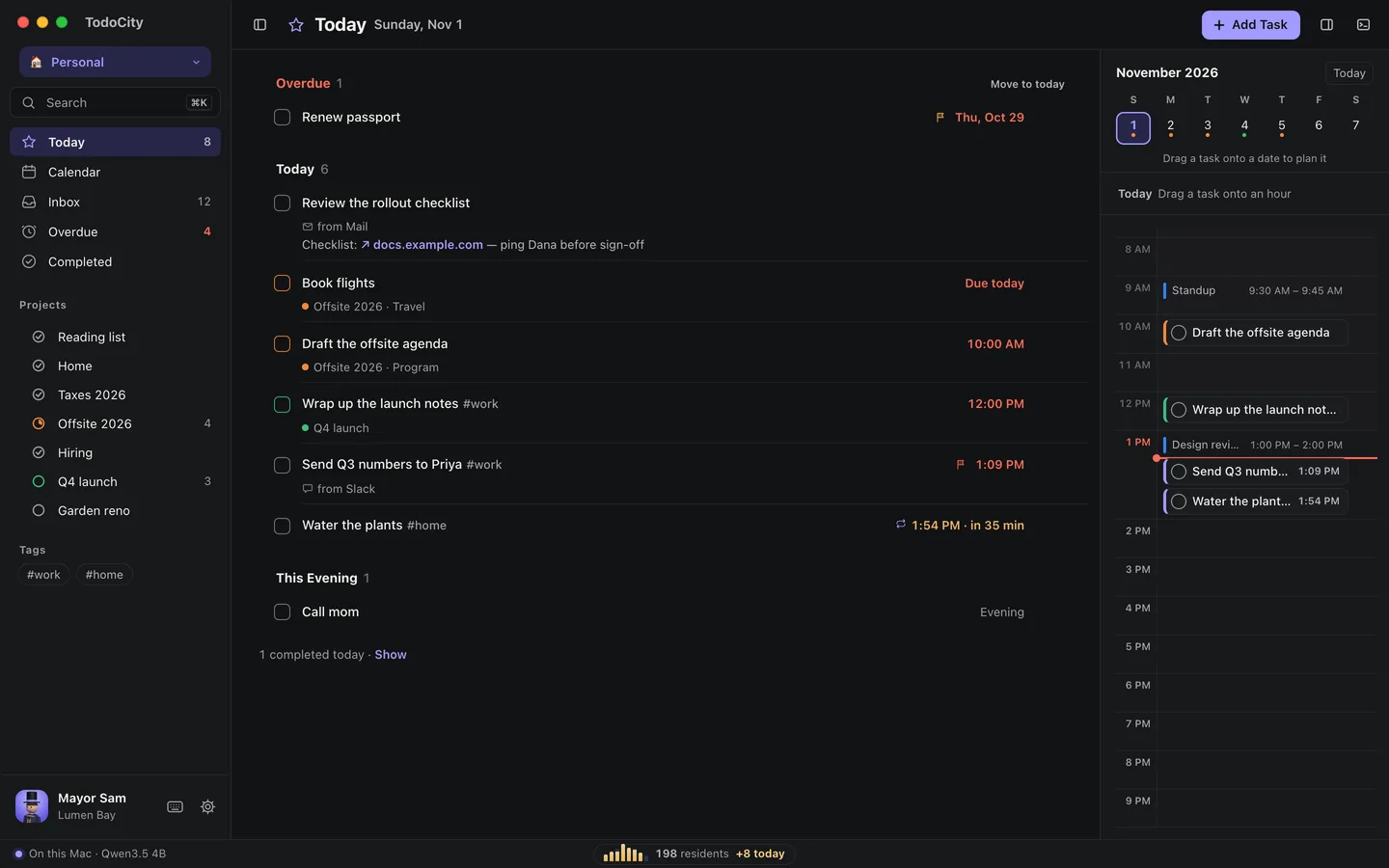
**Today** puts everything for today in one list. Anything late sits at the top, then come today's tasks, and then **This Evening**.
## What shows in Today
- **Overdue** holds tasks whose day, time or deadline has already passed. Click **Move to today** to bring them all forward at once, or replan them one by one.
- **Today** lists the tasks planned for today, in time order. A task planned for later still shows up here if its **deadline** is today.
- **This Evening** is for tasks you've saved for later in the day. To put one there, select it, press D and pick **This evening**.
When you finish a task, it moves out of the way. A line like **1 completed today · Show** brings finished tasks back into view. If you'd rather keep them in the list, turn on **Settings → Appearance → Show completed tasks**.
## Plan with the hours
In full screen, this week's dates and the day's hours sit right beside Today, so you can plan by dragging.
- **Drag a task onto an hour** to give it that time.
- **Drag a task onto a date** to move it to that day.
- A dot under a date means something's planned for that day. A red dot means something's late.
- Click an hour to add a task at that time.
If you turn on Apple Calendar, your meetings show up in the hours as well. See [Apple Calendar](https://todocity.app/docs/connectors/apple-calendar).
## In the side panel
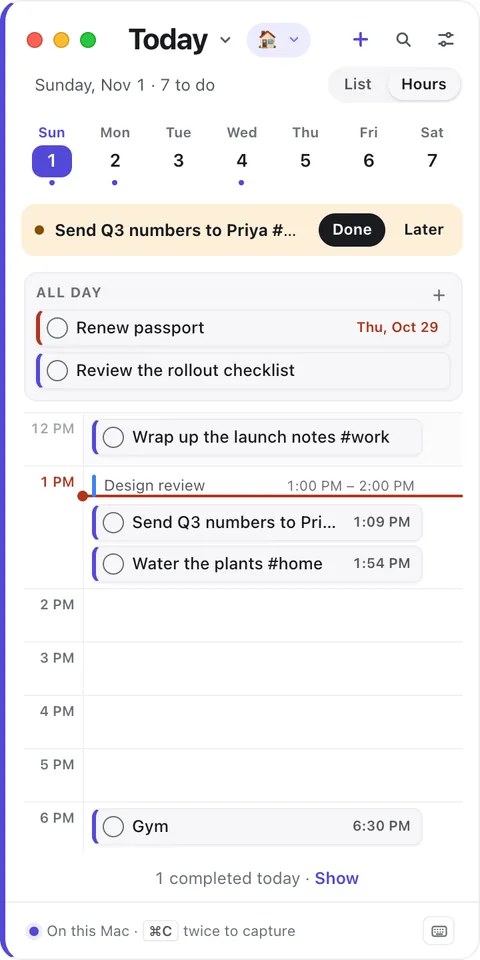
In the side panel, Today has a week strip across the top, and you can drag a task onto another day to move it there. The buttons at the top switch Today between a **List** and **Hours**, or you can press V.
## Move tasks quickly
Select a task and use these keys:
| Key | What it does |
| --- | --- |
| T | Move to today |
| M | Move to tomorrow |
| W | Move to next week |
| S | Snooze |
| X or Space | Complete |
Don't like these keys? You can choose your own in [Keyboard shortcuts](https://todocity.app/docs/keyboard-shortcuts).
## Modes
When you're in a [mode](https://todocity.app/docs/modes) like **Work**, Today only shows that mode's projects, plus tasks that aren't in any project. A line tells you how many more are waiting outside the mode, and **Show** brings them in.