AI agents
Connect Claude Code, Codex, Cursor, Claude Desktop, VS Code and more over MCP. Agents add tasks for your approval, or run your list with Full access.
AI apps on your Mac, like Claude Code, Codex and Cursor, can work with your tasks through TodoCity's built-in MCP server. To begin with, all they can do is add tasks, and you approve each one. If you turn on Full access, they can also plan and tidy your list for you. Every change they make is marked, and easy to undo.
Connect your AI apps
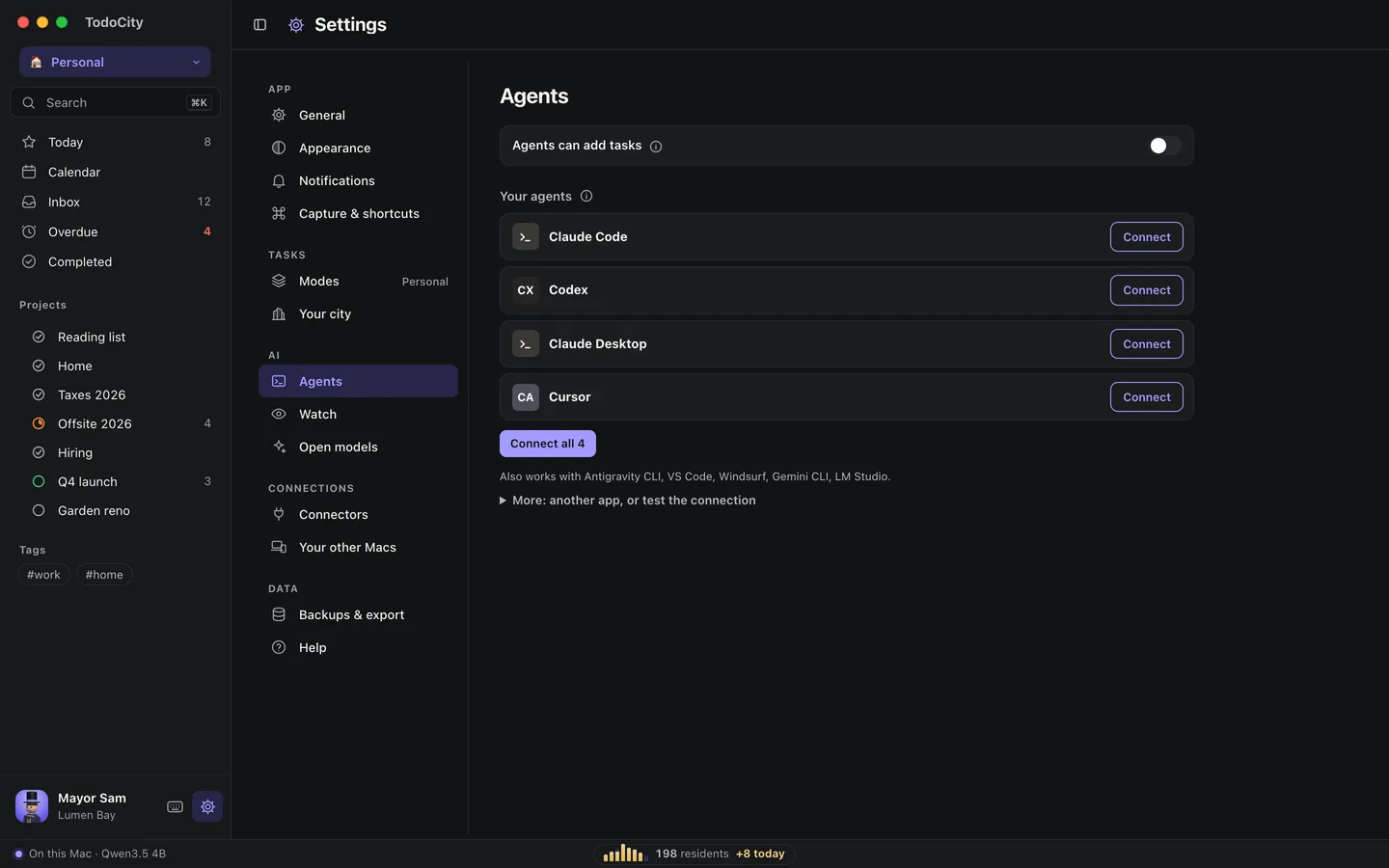
- Open Settings → Agents and turn on Agents can add tasks. It's a single switch, and it only applies to this Mac.
- Click Connect next to each app under Your agents, or click Connect all. This adds TodoCity's MCP server to that app's settings.
- Ask your agent something like “add a TodoCity task to send the deck Friday 3pm”.
These apps connect in one click:
- Claude Code
- Codex
- Claude Desktop
- Cursor
- VS Code
- Windsurf
- Antigravity CLI
- Gemini CLI
- LM Studio
Using a different app? Open More: another app, or test the connection, and add a stdio MCP server named “todocity” using the command shown there. Copy JSON and Copy command give it to you ready to paste, and Test the connection makes sure everything works.
Note
Connecting only works when TodoCity is opened from Applications. Agents you start from TodoCity's own agent panel are connected for you.
Add-only, with your approval
Out of the box, agents can only add tasks. Each task an agent sends waits in the menu bar until you add it, just like a capture.
With Suggest tasks on their own turned on, agents can send you a task without being asked, for example when you mention a deadline or say “remind me”. You still approve each one.
Full access
When you turn on Full access in Settings → Agents, agents can read, add, change, schedule, complete and delete your tasks, sub-tasks, reminders, projects and sections. Settings tells you how many tools that gives them.
With Full access, your agent can handle requests like these. Many apps offer them ready-made, as slash commands:
| Request | What the agent does |
|---|---|
| Plan my day | Finds the free time between your meetings, fits today's tasks into it and shows you the plan. Once you say yes, it schedules them |
| Weekly review | Sums up what you got done, what slipped and what to move to next week, and checks with you before changing anything |
| Tidy my Inbox | Suggests a project and section for each task in your Inbox, and checks with you before moving anything |
See and undo what agents did
Anything an agent adds or changes is marked on the task with the agent's icon, such as Scheduled by Claude or Added by Claude, and each mark comes with Undo.
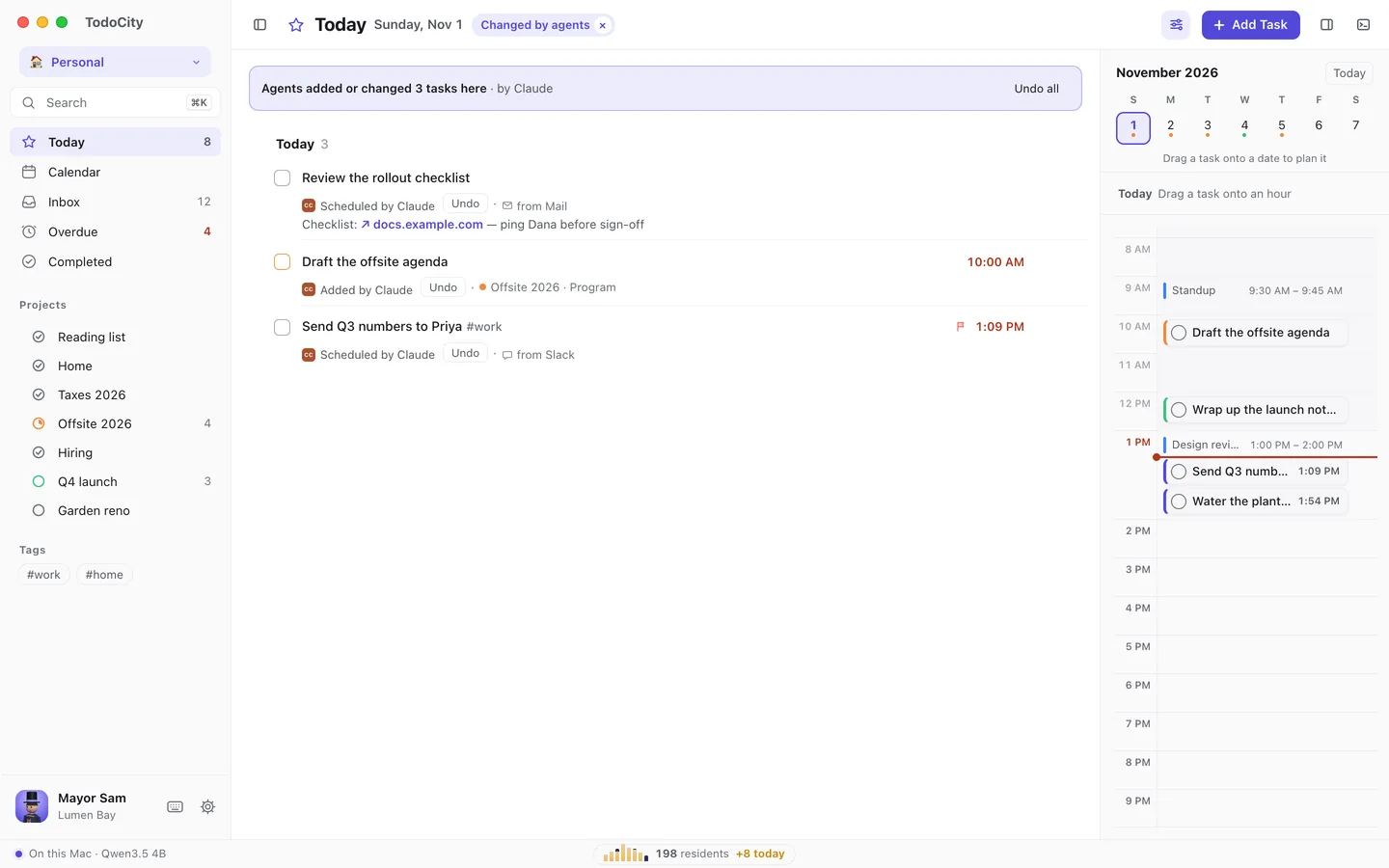
- To see it all, click the View button at the top and pick Changed by agents. You'll also find Only mine and Everything there.
- Undo one task at a time, or use Undo all to roll back everything from one request.
- To bring back deleted tasks, look under Deleted by agents in Settings → Agents. Tasks an agent deleted stay there for 7 days, each with Bring back.
- The menu bar also shows what an agent just did, with Undo.
Once you change a task yourself, its agent mark goes away.
Private by default
Agents talk to TodoCity over a local connection on your Mac. Whatever an agent reads, it sends on to its own AI service. With add-only access, agents can only add tasks for you to review. With Full access, they can read and change your tasks too.