Watch
Watch spots requests, deadlines and your own promises in the app in front, and suggests them as tasks for you to approve. Off until you turn it on.
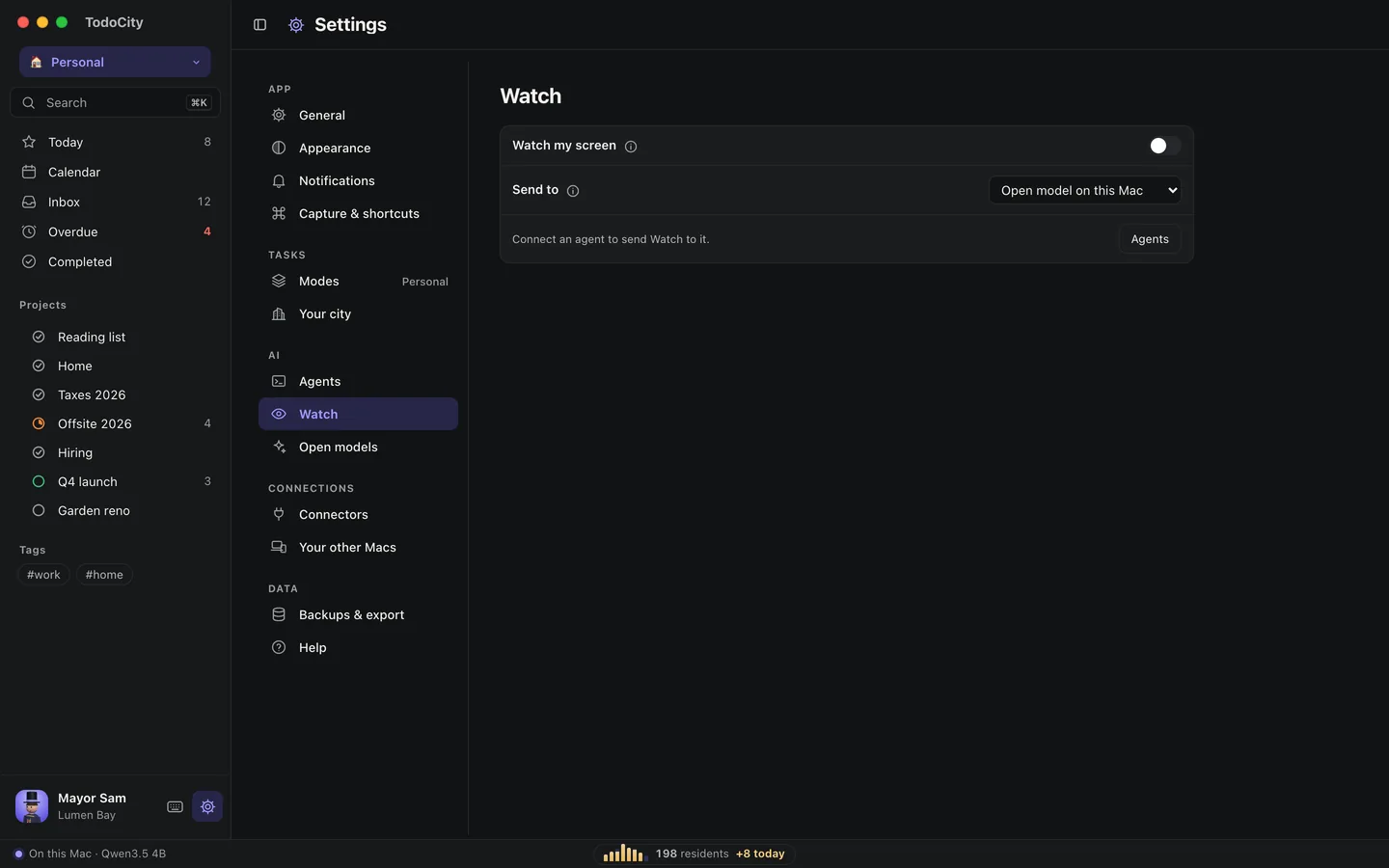
Watch notices to-dos as they appear on your screen, like a request in a chat or a promise you made in an email, and suggests them as tasks for you to approve. It stays off until you turn it on in Settings → Watch.
Turn it on
- Open Settings → Watch and turn on Watch my screen.
- Allow Accessibility if TodoCity asks. Watch uses it to read the text of the window in front of you.
- Choose who reads new messages under Send to.
- Add your name under Your name, so Watch can recognize your own promises.
What Watch reads, and what it never reads
Watch reads the text of the window in front of you and doesn't keep any of it. Only new lines that look like to-dos get passed on to the reader you've chosen.
It never reads:
- password managers
- Keychain
- System Settings
- terminals
- TodoCity itself
- what you type, or password fields
It doesn't take screenshots or record anything. Under Apps, you can tell it to skip any other app as well.
Choose a reader
| Reader | Where your text goes |
|---|---|
| Open model on this Mac | Stays on your Mac. See AI models |
| An agent you've connected: Claude Code, Codex, Antigravity, Gemini or Cursor | To that agent, signed in as you, and from there to its AI service |
You'll only see agents you've connected in Settings → Agents. Watch asks an agent 40 times an hour at most, and checks its answers the same way it checks the open model's.
Private by default
If the open model is your reader, everything Watch reads stays on your Mac. If you pick an agent, new lines that look like to-dos go to that agent and its AI service.
Your name
Watch picks up your own promises, like “I'll send it Monday”, and leaves other people's alone. To do that, it needs to know your name. You can add other versions of it, separated by semicolons, like Rivera, Sam; sam@example.com.
Suggestions
Just like a capture, each suggestion waits for you to approve it. You can Add or Discard them one by one, or Add all.
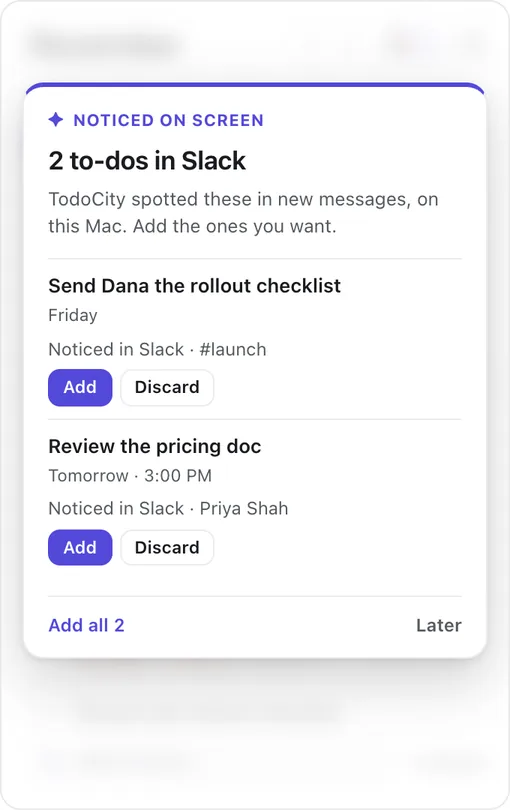
With Show suggestions right away on, the menu-bar dropdown opens as soon as a to-do is spotted. With it off, suggestions wait quietly behind a banner until you're ready.
Battery and breaks
- Only when plugged in saves battery, since Watch only runs while your Mac is plugged in.
- Pause 1 hour gives you a break, and Resume starts it again.
- Settings shows you Watch's last look, including which app it was, when, and how many lines were new.