Reminders and notifications
TodoCity reminds you when a task is due, with Done and Snooze one click away. Choose a morning summary, a daily check-in and the “Lights on” sound.
When it's time for a task, TodoCity lets you know, and you can hit Done, Snooze or Tomorrow right from the notification. You'll find all the settings for this in Settings → Notifications.
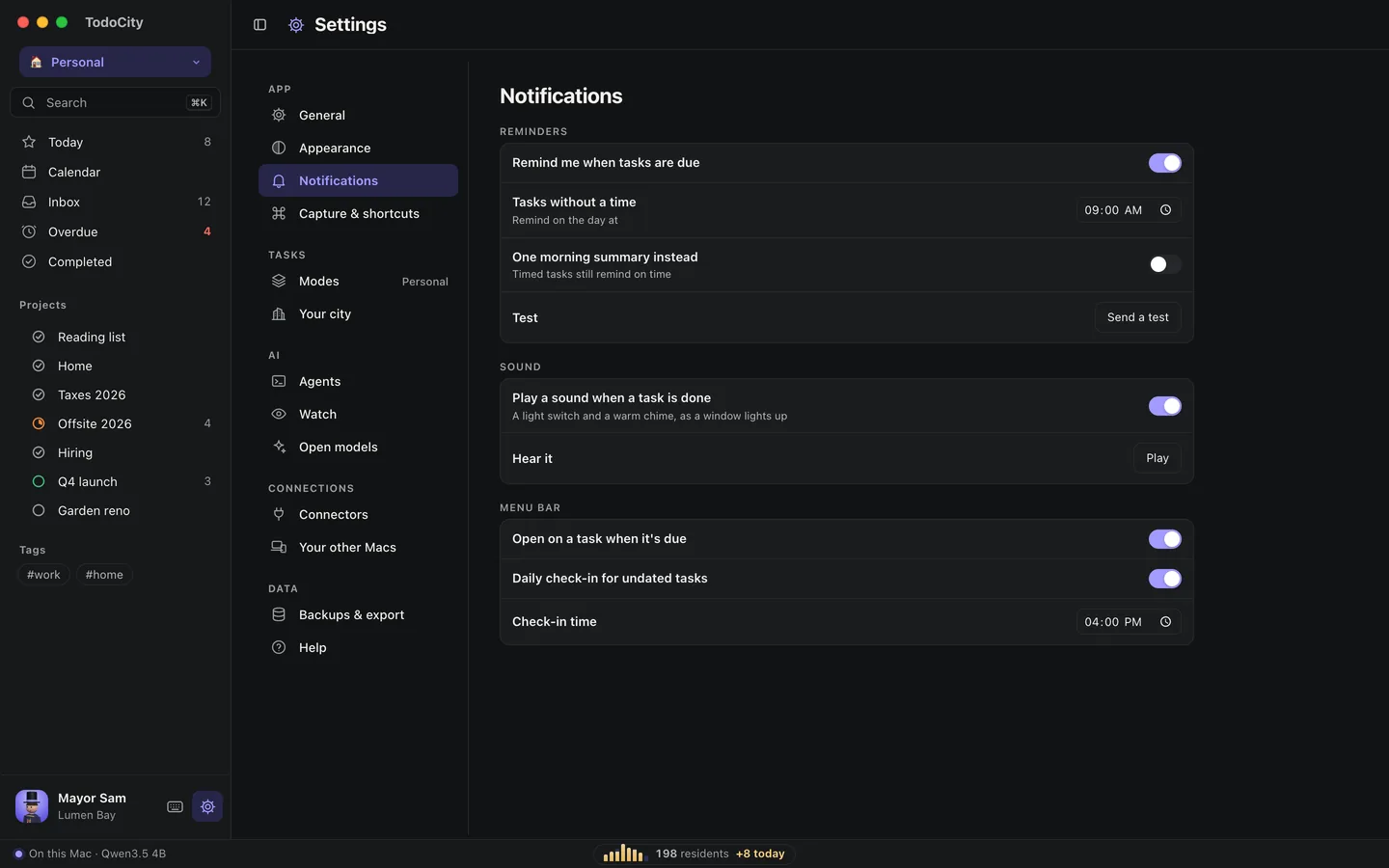
Reminders
| Setting | What it does |
|---|---|
| Remind me when tasks are due | Turns reminders on or off. They're on from the start |
| Tasks without a time | If a task has a day but no time, it reminds you on that day at the time you set here |
| One morning summary instead | Sends one notification each morning instead of one per task. Timed tasks still remind you on time |
| Test | Send a test notification to make sure everything works |
macOS asks you once whether TodoCity can send notifications. If they're turned off for TodoCity, Settings will tell you. Click Open System Settings and turn them on there.
When a task comes due
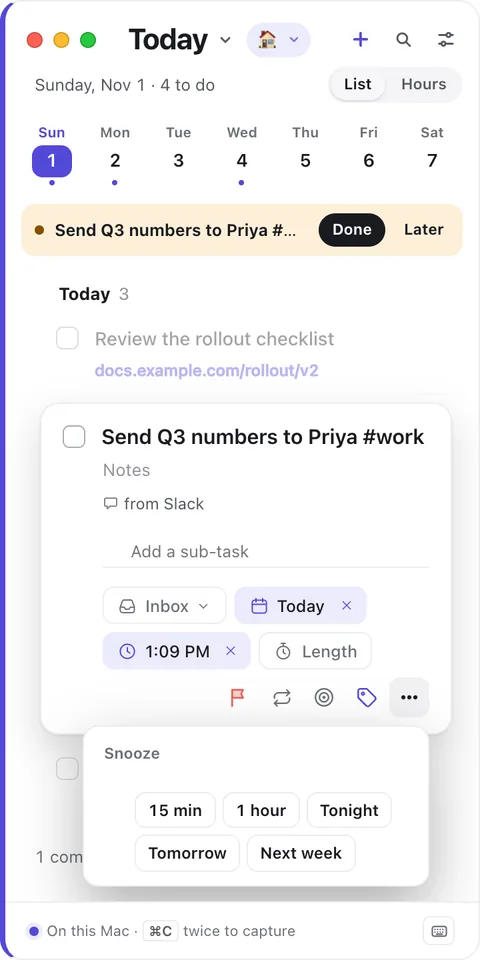
Along with the notification, the menu-bar dropdown opens on just that task, with everything else blurred behind it. It never steals your keyboard, so you can keep typing.
If you'd rather it stayed closed, turn off Open on a task when it's due.
Snooze
You can snooze a task from its notification, from the dropdown, from its ⋯ menu, or by pressing S:
| Choice | What it does |
|---|---|
| 15 min, 1 hour | Moves the task to that long from now |
| Tonight | Moves it to 8:00 PM today. You'll see this option until 7 PM |
| Tomorrow, Next week | Moves it to that day |
Repeating tasks keep their usual days and times. Snoozing one just reminds you again later, and Tomorrow or Next week only move this one occurrence.
The daily check-in
Once a day, the menu-bar dropdown asks you to plan any tasks that don't have a date, with one tap each. You can turn this on or off with Daily check-in for undated tasks, and choose when it happens with Check-in time.
The “Lights on” sound
Whenever you finish a task, you'll hear Lights on, a light switch followed by a warm chime. To listen to it, click Play next to Hear it. If you'd rather not hear it, switch off Play a sound when a task is done in Settings → Notifications.
Modes and other Macs
- If you're in a mode with Notifications only for these projects turned on, reminders for other projects wait until you switch.
- Notifications and snoozes stay on the Mac where you set them, even if you use sync between your Macs.
Private by default
Your Mac schedules notifications itself. No server is involved.