Keyboard shortcuts
Every key in TodoCity, from capture anywhere on your Mac to moving tasks in a list. Press ? to see them, and click a key to pick your own.
TodoCity has two kinds of keys. Some shortcuts work anywhere on your Mac, and others work in the task list. To see them all, press ? in TodoCity and the Keyboard shortcuts sheet opens.
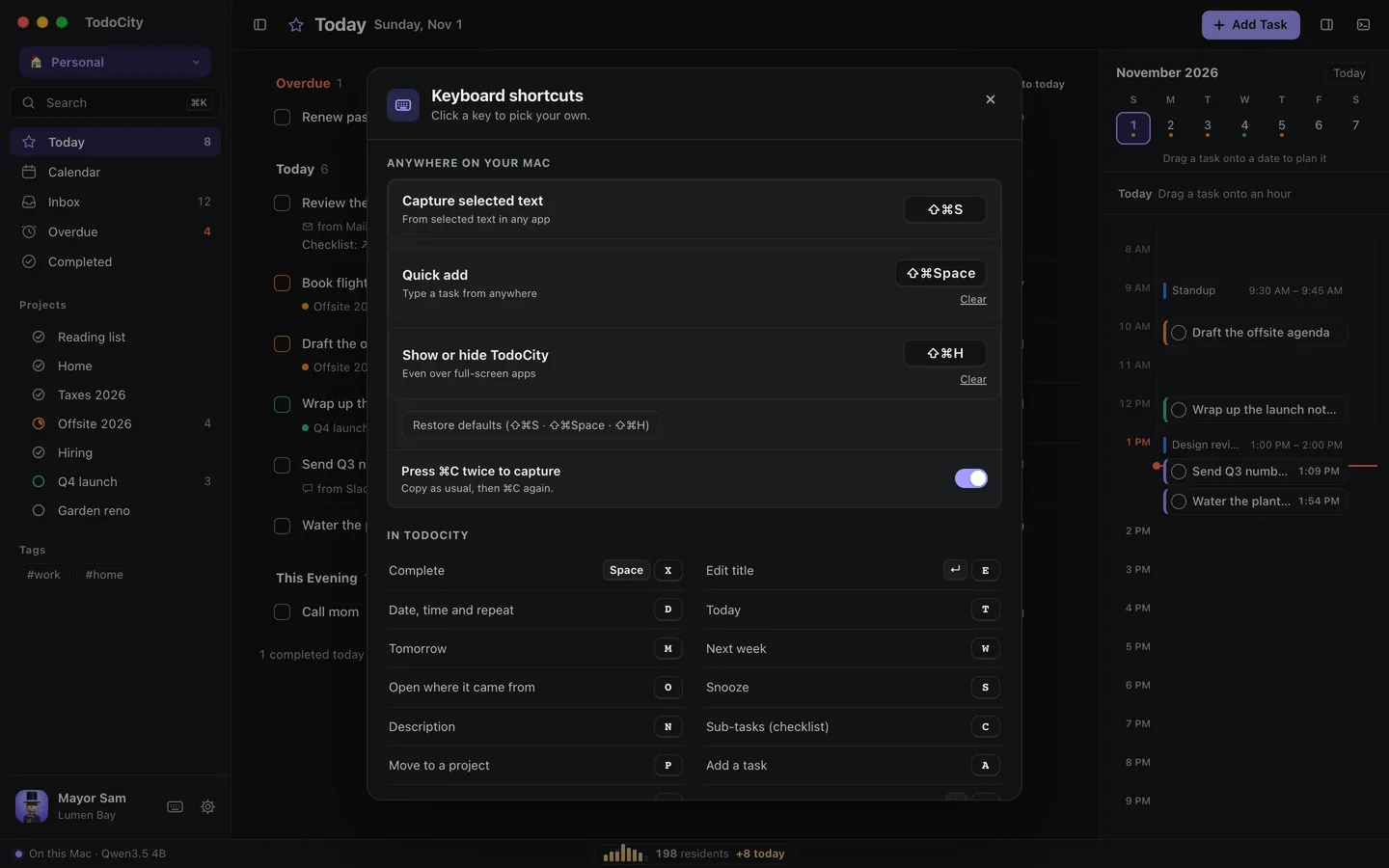
Anywhere on your Mac
| Shortcut | What it does |
|---|---|
| ⌘C ⌘C | Capture what you just copied. Copy as usual, then press ⌘C again |
| ⇧⌘S | Capture selected text |
| ⇧⌘Space | Quick add, so you can type a task from anywhere |
| ⇧⌘H | Show or hide TodoCity, even over full-screen apps |
You can change these in Settings → Capture & shortcuts, or right in the sheet. Click Change shortcut and press the new keys, or click Clear to turn one off. Restore defaults puts them all back.
In the task list
| Key | What it does |
|---|---|
| X or Space | Complete |
| E or Return | Edit title |
| D | Date, time and repeat |
| T | Today |
| M | Tomorrow |
| W | Next week |
| O | Open where it came from |
| S | Snooze |
| N | Description |
| C | Sub-tasks (checklist) |
| P | Move to a project |
| A | Add a task |
| F | Today ↔ Inbox |
| V | Today as a list or in hours |
| J or ↓ | Next task |
| K or ↑ | Previous task |
Pick your own keys
You can change any of the letter keys in the table above:
- Press ? to open Keyboard shortcuts.
- Click the key next to an action.
- Press the new key. It can be a letter, a digit, or one of
, . ; ' [ ] - =. If you change your mind, press Esc to keep the old one.
If you pick a key that's already taken, the two actions swap keys, so each key still does just one thing. Use the usual keys puts everything back. Space, Return and the arrow keys always work as well.
Keys that stay the same
| Key | What it does |
|---|---|
| /, ⌘F or ⌘K | Search |
| ⌘Z | Undo |
| ⌫ | Delete |
| ⌘-click, ⇧-click | Select several (⌘A selects all) |
| ← → | Day before or after, in Calendar |
| ⌃⌘F | Full screen ↔ side panel |
| ⌘\ | Show or hide the sidebar, in full screen |
| ⌥⌘\ | Show or hide the calendar pane, in full screen |
| ⌘, | Settings, in full screen |
| ⌃⌥1, ⌃⌥2… ⌃⌥0 | Switch mode |
| ? | Keyboard shortcuts |