Tasks
Everything a task can hold. Notes, sub-tasks, a day and time, a deadline, a length, priority P1 to P3, tags and a repeat, all saved as you type.
Click a task and it opens right where it is, showing everything it can hold. Whatever you change is saved as you go, so there's no Save button to look for.
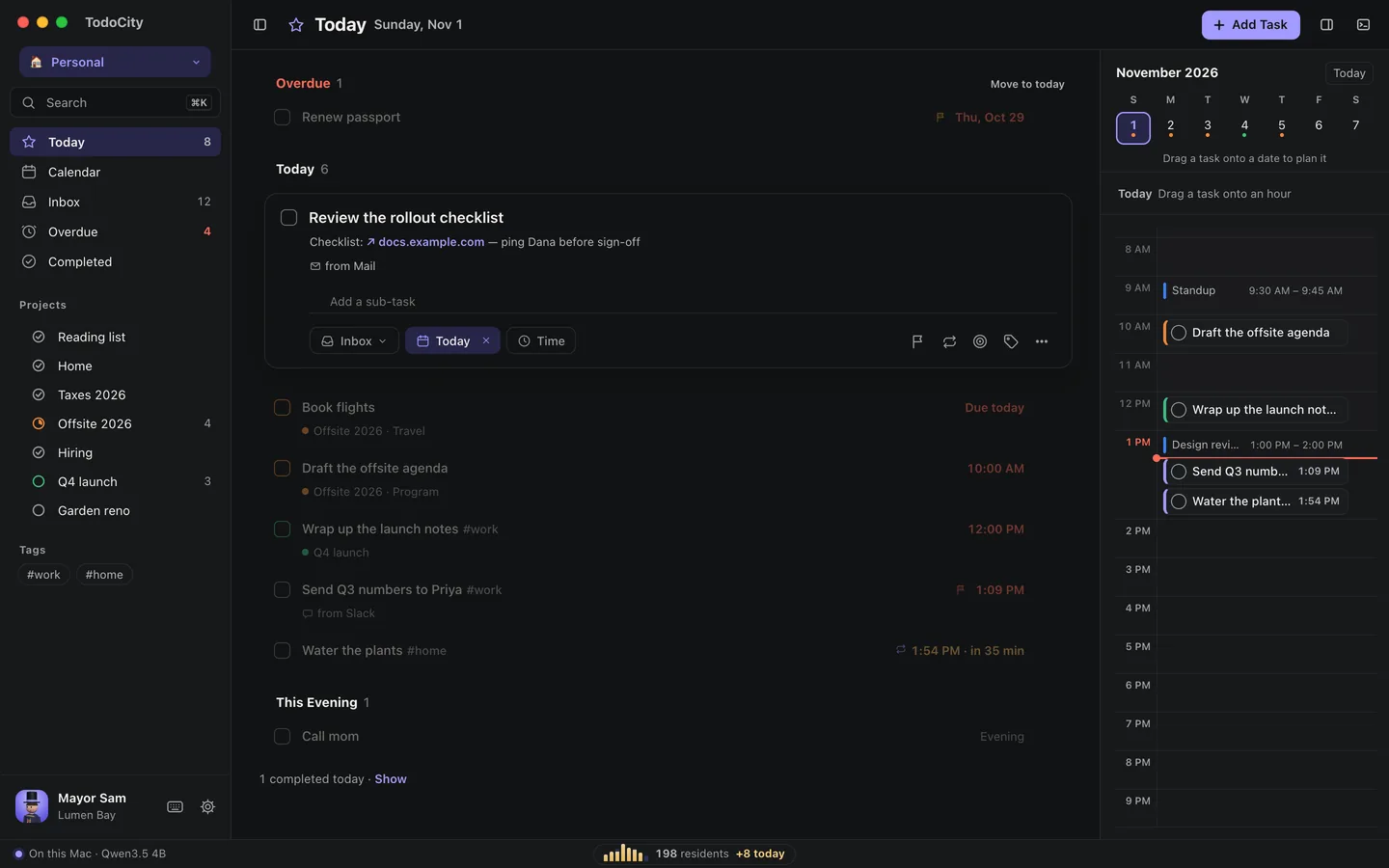
What's in a task
| Part | What it's for | How to set it |
|---|---|---|
| Title | What to do | Click the title, or press E |
| Notes | Links, details, anything you'll want later. Links open in one click | Notes, or press N |
| Sub-tasks | Steps to tick off one at a time | Add a sub-task, or press C |
| Project and section | Where it belongs | The project chip, or press P |
| Day and time | When you plan to do it | The date chip and Time, or press D |
| Length | How long it takes | Length |
| Deadline | The day it has to be done by | The deadline icon |
| Priority | P1, P2 or P3 | The flag icon |
| Repeat | When it comes back | The repeat icon. See Repeats |
| Tags | Words for grouping and finding tasks | The tag icon, or #tags in the title |
Day and time
The date chip gives you Today, Tomorrow, Someday and No date, plus a calendar. For the full date and time editor, press D. It adds This evening and Next week, along with a time, a deadline and a repeat.
You can also just type the date, like “fri 3pm”, “tomorrow evening” or “every monday”. See Dates and times.
Times can be any minute you like, such as 9:07.
Sub-tasks
Sub-tasks are a checklist inside the task. In full screen, they show right under it, so you can tick them off without opening anything.
If you paste or type a few lines as a list (- milk, - eggs), each line becomes a sub-task. Capturing a bulleted list works the same way.
To show or hide notes and sub-tasks under every task, use Settings → Appearance → Show notes under tasks.
Deadline
A deadline is the day a task has to be done by, which isn't always the day you plan to do it. If a task is planned for next week but due on Friday, it shows up in Today on Friday.
The task gets a chip like Due Fri, which changes to Due today when the day arrives. To clear a deadline, open it and click Remove deadline. On a repeating task, a deadline ends the series on that day.
Length
Use the Length chip to pick a quick length, or type any number of minutes, like 7, 45 or 1h30. A task can last anywhere from 1 minute to a whole day, and Calendar draws each one at its real start time and length.
Priority
| Priority | Name |
|---|---|
| P1 | Urgent |
| P2 | High |
| P3 | Medium |
Click the flag, or type p1, p2 or p3 when you add a new task.
Tags
Type a tag and press Return, or write #tags in the title. Your tags are listed in the sidebar, and clicking one shows only its tasks. You can also search for something like #home. See Search.
More
The ⋯ button on an open task has everything else:
- Open in Slack, Open in Mail and so on take a captured task back to where it came from.
- Send to agent… hands the task over to an AI agent. See The agent panel.
- Snooze offers 15 min, 1 hour, Tonight, Tomorrow or Next week.
- Move to Someday
- Duplicate
- Delete
⌘Z undoes your last change, even a delete.
Saving
Your edits are saved half a second after you stop typing, and again when you click away or close the task. Click Done to close it.
Select several
⌘-click or ⇧-click to select several tasks at once (or ⌘A to select them all), then complete, move or delete them together.