Search
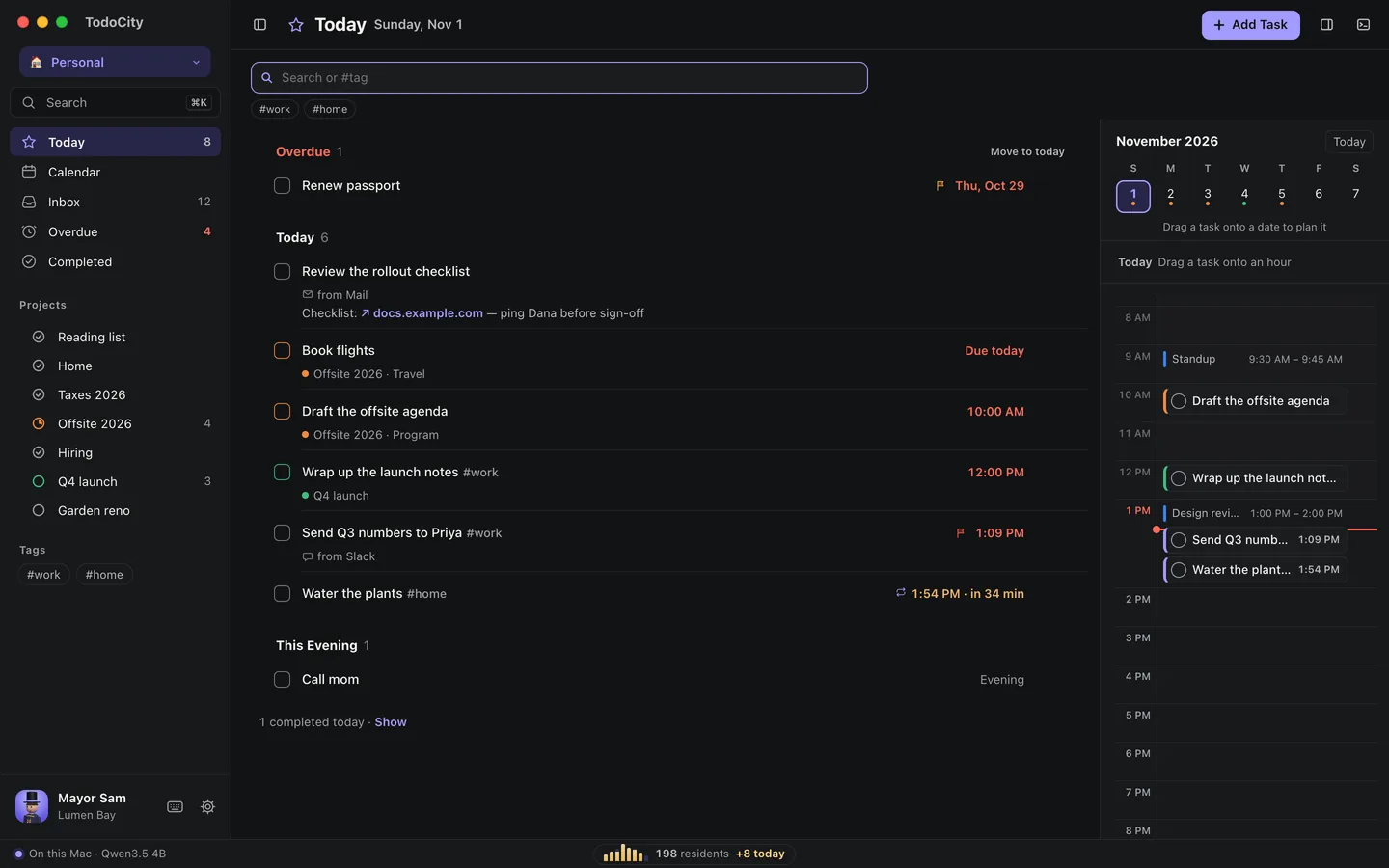
Find any task by its words or tags. Press / or ⌘K, type, and the list narrows as you go. Tags filter in one click.
Search narrows down whatever list you're looking at as you type. Press /, ⌘K or ⌘F, or click Search at the top of the sidebar.
What it looks at
A task matches when every word you type shows up somewhere in:
- its title,
- its notes,
- the original text you captured,
- or the app it came from, like Slack or Mail.
So typing slack priya finds the task you captured from Slack that mentions Priya.
Search by tag
Start a word with # to match a tag exactly. For example, #work shows only tasks tagged #work. Your most-used tags sit just under the search box, so you can click one to add it and click it again to take it off.
Your tags are also listed in the sidebar, and clicking one searches for it.
Modes and finished tasks
While you're searching, the list includes every project, no matter which mode you're in. To search tasks that aren't in a project, open Inbox. To search finished tasks, open Completed.
Press Esc to close search, or click × to clear it.